
How to Roll Out Digital Business Cards Company-Wide: Everything You Need To Know
Six steps for rolling out digital business cards across a company, from syncing employee data and locking branding to assigning cards and handling joiners and leavers.

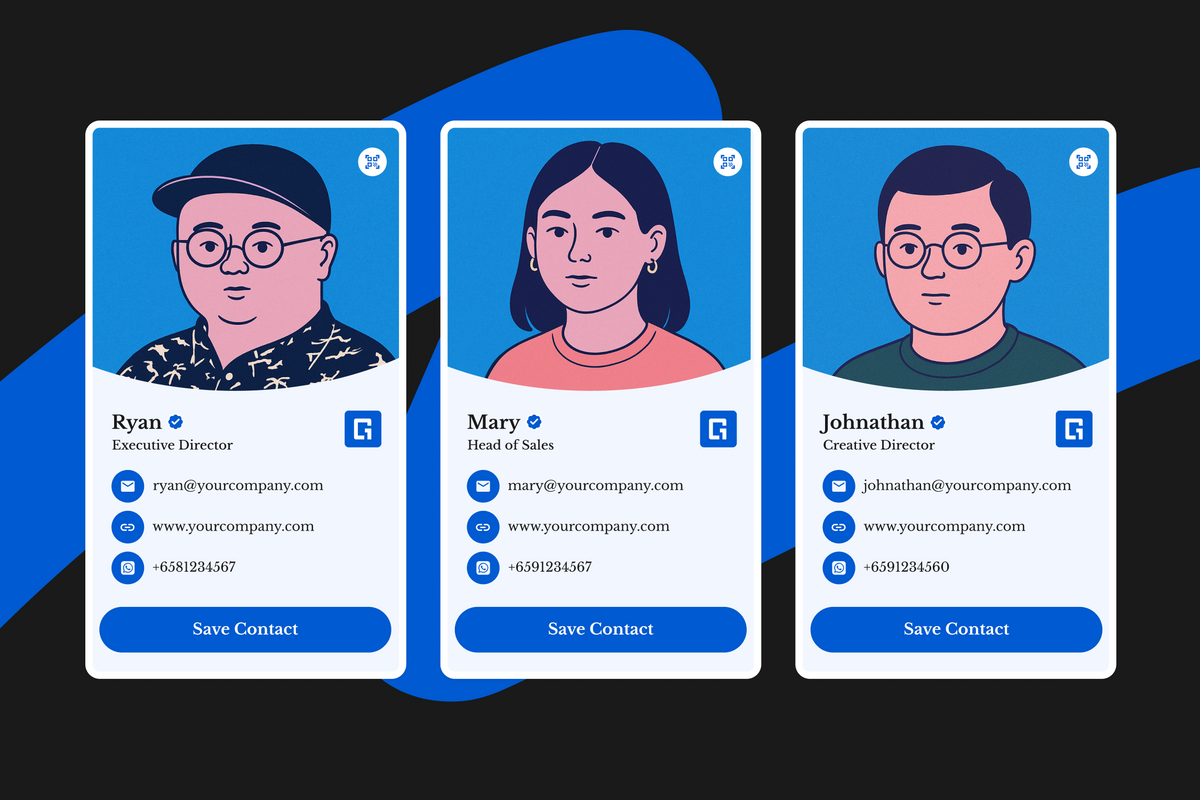
Printed business cards date quickly. A promotion, a rebrand or an office move makes a box of them wrong overnight, and people who leave walk away with cards that still carry your logo. Across two hundred employees, that becomes a constant cycle of reprints and wasted stock, with no way of telling whether any card ever led to a conversation.
Digital business cards address this by pointing to a profile rather than storing details on the paper card itself. Updates happen centrally, branding stays consistent, and companies can now see how their cards are being used.
Rolling out company-wide digital business cards is simpler than it sounds. Most of it comes down to setting things up in the right order: employee data first, then branding and permissions, then the cards themselves. Get that sequence right and the rest falls into place.
This guide uses a 200-person rollout as the example, but the same workflow applies whether you are issuing 50 cards or 2,000.
TL;DR: Sync employee data, lock your branding, set permissions, assign each physical card to a named employee, launch with one clear message, and build the cards into your on/offboarding process.
Rollout checklist
Have these ready before you start.
| Area | What to prepare |
|---|---|
| Employee data | Names, job titles, work emails, profile display photo and contact details |
| Branding | Logo, colours, profile template and company details |
| Permissions | Administrators and which fields employees can edit |
| Cards | NFC cards inventory, customised or generic company-branded cards |
| Launch | How cards are handed out, the launch message and one support contact |
What does a company-wide rollout involve?
A company-wide rollout comes down to six steps, done in this order.
- Employee data: Decide who needs a card, and pull their names, titles and contact details from your directory.
- Branding: Set the logo, colours and layout every digital business card will share.
- Permissions: Choose who administers the account and which fields employees can edit themselves.
- Card assignment: Activate every NFC card on the team dashboard, then link each one to the employee who receives it.
- Distribute: Hand out the cards with one short email explaining how to use them.
- Ongoing management: Keep profiles current as people join, change roles or leave.
Step 1: Sync and clean your employee data
Your HR directory should be the source of truth. Use it to provision profiles, then assign physical cards to the employees those profiles belong to.
Import employees from your HR system

If your employee data lives in Microsoft Entra ID, Google Workspace, BambooHR or Deel, you can create digital business cards via integrations. Connecting your HR system means profiles are built from the employee data your organisation already keeps, which saves manual work and the errors that come with it.
Platform integration guides:
- Add Team Members via Google Workspace
- Add Team Members via Microsoft Entra ID
- Add Team Members via BambooHR
- Add Team Members via Deel
If you don't have a directory to connect, you can also bulk-create from a clean CSV file. The guide covers adding team members individually, in bulk, or through an integration.
Check your employee data first
Whatever is in your employee records ends up on people's cards, mistakes included. Job titles are the usual culprit: they quietly go out of date, and nobody notices until a client sees the wrong one.
Step 2: Set your company branding
Set your branding once, centrally, so every profile looks like it belongs to the same company from day one.
1. Lock the brand
At minimum, the company should control the logo, colours, layout and organisation details on every profile. In One Good Card, team templates fix these centrally. You can also apply your company logo to every profile in one go, including anyone who joins later, so every card carries the same logo.

2. Leave the right fields editable
Most companies lock the official details, like name, job title and company contact information, so every profile stays accurate. What employees usually get to edit are the personal extras, such as their LinkedIn and other social links. That keeps every card consistent while still letting people make it their own.
3. Add extra branding where it helps
Once the basics are locked, a few optional additions make profiles feel more official.
- Verification badge beside each employee's name shows visitors the profile is managed by your company.
- Custom profile domain, such as cards.company.com, puts your own domain on every digital business card link.
- Custom profile font applies your brand typeface to headings, body text and buttons.
Step 3: Define roles and permissions
Administrators manage the team, branding and integrations from the central dashboard. Employees edit only the fields you permit. Deciding this early avoids the most common rollout failure, where everyone gets full edit rights on day one and the branding drifts within a month.
A workable default is a small group of administrators across HR and marketing who own the template and the account, and employees who can update their own photo, title and contact details but nothing structural. Two or three administrators is usually easier to manage than giving broad administrative access across the organisation.
Step 4: Assign and track physical NFC cards
Start by activating all your NFC cards on the team dashboard, so every card is accounted for from day one. Then link each card to the employee who receives it, so you can reassign cards, recover them during offboarding and keep track of spare stock.
Cards not yet assigned sit in the Serial Vault until they are needed.

Not every card needs someone's name on it. A practical setup is personalised cards for long-term employees, plus a batch of generic company-branded cards for roles with higher turnover. The generic cards can be reassigned as people come and go, so you are not reordering every time someone leaves.
Step 5: Distribute the cards to employees
Send everyone their login details or a welcome email with their digital business card link straight from the team dashboard, individually or all at once. Send Profile Details to Employees walks through it.
Give employees a profile check window
Before anyone starts using their card externally, give them a short window to check their name, title, photo, contact details and links, and report anything that needs correcting. It is the fastest way to catch a wrong title or phone number before a client does.
Step 6: Maintain cards after launch
Once cards are out, keeping them up to date is mostly an easy routine.
- Onboarding new employees: Add them through your directory or the dashboard, assign a card from your spare stock, and send their profile details the same way as everyone else.
- Role and team changes: A promotion, department move or new phone number does not need a new card. Update the digital business card and the same card shows the new details straight away.
- Offboarding employees: Unlink the card's serial before deleting their profile, so the card can be reused. Add both steps to your offboarding checklist: delete the digital business card and collect the physical NFC card
- Handing over the dashboard: If an admin is leaving, pass their access to someone else before their last day, especially if they are the Super Admin.
A practical rollout timeline
| Phase | What to do |
|---|---|
| Before launch | • Confirm employee data in your directory • Finalise branding and the team template • Assign administrators and set permissions • Create and review profiles • Activate all NFC cards on the team dashboard • Link each card to the employee receiving it |
| Launch day | • Hand out the cards • Send profile details from the dashboard • Name one support contact |
| After launch | • Fix any incorrect details • Add new joiners as they arrive • Check usage and engagement across teams • Follow up where cards are not being used |
How do you measure rollout success?
- Usage: How often cards are being tapped, scanned and viewed across the organisation. This tells you whether people are actually carrying and sharing their cards. Steady activity across teams means the rollout has landed. A team with little or no activity usually means the cards are sitting in desk drawers.
- Engagement: What visitors do once a profile is open, such as clicking links or saving the contact. This tells you whether the profiles themselves are working. If views are high but clicks and saves are low, the profile may need clearer links or fewer distractions.
Team analytics show both across the whole organisation, and let you compare teams or drill into individual members.
A few ways to put the numbers to use:
- Check in after the first month: It gives people enough time to settle in, and shows you early where the rollout has not taken hold.
- Treat low usage as a prompt, not a verdict: A quiet team might just need a reminder of how to share their card, or might not meet many people externally.
- Learn from the busiest teams: Look at how the most active teams use their cards and share what works with everyone else.
Common mistakes
- Handing out cards before the branding is locked: People customise immediately, and locking the template afterwards means undoing two hundred sets of changes.
- Not checking that employee details are up to date: Old job titles and phone numbers end up on public profiles. Review your directory or file before importing.
- Deleting a leaver's profile before releasing the serial: This can make a reusable card harder to reassign and lead to an unnecessary replacement order.
- Not explaining how the cards work to employees: If people do not know how to tap or share their card, it ends up unused. A quick how-to alongside the profile details you send is usually enough.
Final successful rollout checklist
- Every employee has a digital business card
- Every digital business card uses the approved company branding
- Employees can update the details they are responsible for, and nothing else
- Every physical NFC card is assigned to a known employee
- A named admin is responsible for keeping digital business cards up to date
- The organisation can see whether cards are actually being used
Ready to plan your company-wide rollout? One Good Card for Teams gives HR and operations teams one place to provision employee profiles, control company branding, manage cards and track usage across the organisation. Explore digital business cards for teams.

Frequently asked questions
Why do companies switch to digital business cards?
What happens when an employee changes job title?
What happens to the card when someone leaves?
Related articles
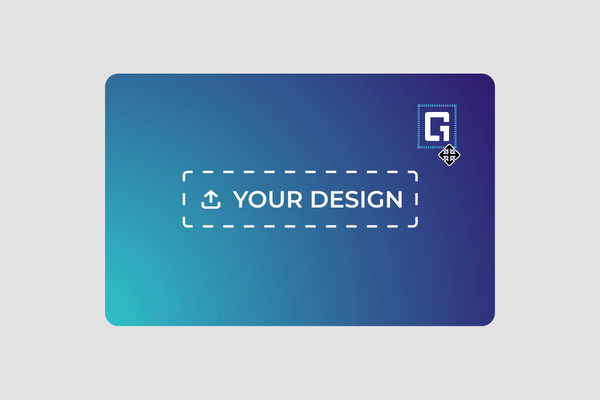
How to Design Your Own NFC Business Card (Customiser Included)
A step-by-step walkthrough of One Good Card's card customiser, covering templates, backgrounds, text, images, shapes, layers, front and back design,...
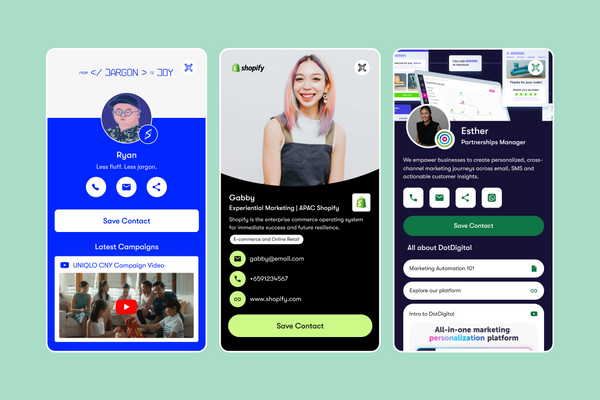
Digital Name Cards: Are They Worth It in 2026?
Digital name cards have evolved far beyond basic contact sharing. Here's an honest look at whether they're worth it —...

Digital Name Cards for Companies: The Business Case in 2026
Digital name cards for companies cut print costs, standardise branding, and make networking measurable. Here's what you should consider.
The all-in-one digital business card
for professionals
- ✓ Fully Customisable
- ✓ Lifetime Updates
- ✓ AES-256 Encryption
- ✓ Certified CSA-Compliant
- ✓ iOS and Android