
How to Design Your Own NFC Business Card (Customiser Included)
A step-by-step walkthrough of One Good Card's card customiser, covering templates, backgrounds, text, images, shapes, layers, front and back design, and the full-bleed print preview.

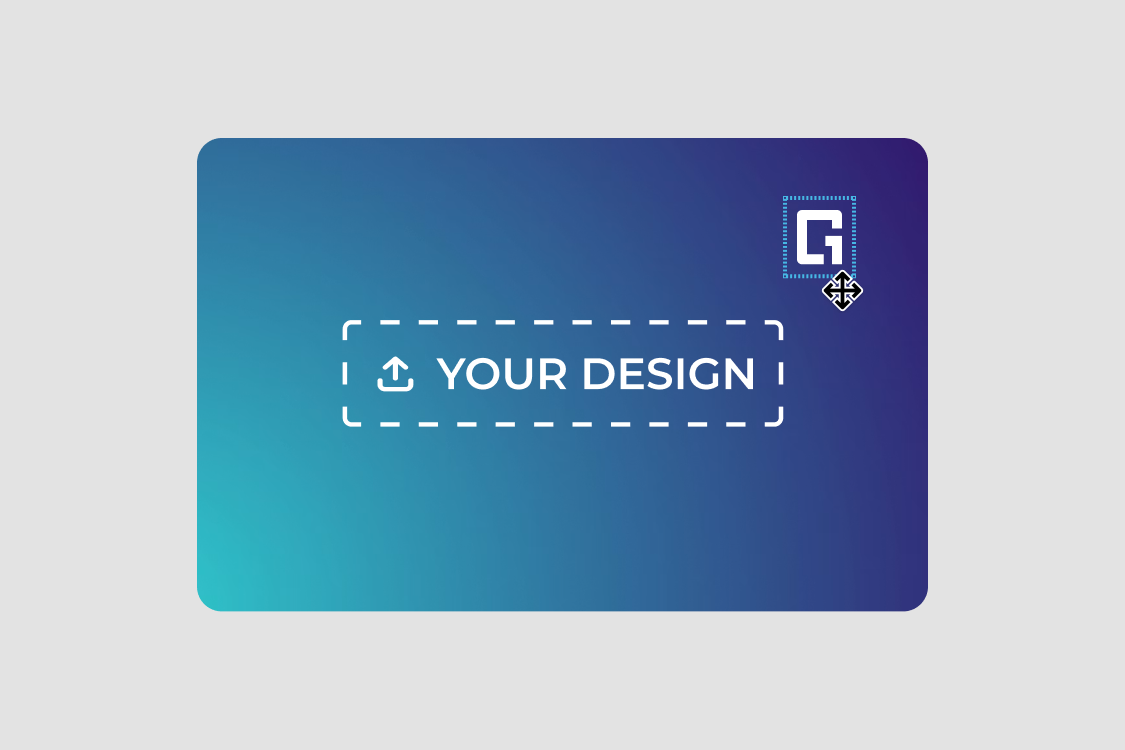
Designing a business card has traditonally meant working in a separate design tool, matching the right dimensions yourself, and exporting a file before you can see how it looks.
Now you can customise and design your own One Good Card NFC business card directly from our website. We've upgraded the card customiser to make your experience smoother, more flexible, and simpler to use.
TL;DR: You can design your own NFC business card in the browser, no design software needed. Start from a ready-made template or a blank canvas, add your logo and text, and lay out both the front and back. A live preview shows the card at its real size as you go.
What's new in the card customiser
1. Start with a card design template

Six ready-made design layouts give you a finished starting point: Clean centre, Statement, Simple classic, Centralised, Signature, and Modern orbit. Each one handles the decisions that usually stall people at the blank canvas stage, such as where the name sits, how much breathing room to leave around it, and how the elements balance against each other.
A template is a head start, not a fixed choice. Every part of it stays editable, so you can load Statement for its layout, swap the background to your brand colour, replace the placeholder text, and end up somewhere quite different from where you began.
2. Customise the back of your card

The back of your card is now yours to design. That includes exactly where your QR code sits, which was previously fixed in place.
This matters more than it sounds. The QR code is what people scan when their phone does not support an NFC tap, so it needs to be easy to find without dominating the card. Being able to move it means you can build the back around it, whether that is a clean layout with the code centred, or a fuller design with your logo, tagline, or company details sharing the space.
3. Drag and drop your brand elements

Every element on your card is drag and drop. Grab your logo, a photo, a shape, or a line of text and drop it exactly where you want it, instead of working within a fixed layout.
Drag with Grid and Snap turned on and elements line up as you go, so you can drag a logo into the corner or align a row of text against a shape without eyeballing it. Drag an item in the Layers panel to change what sits in front of what, or drop an image behind everything else as a background. Nothing is locked to a preset position, and Undo, Redo, and Reset are there whenever you want to walk a change back.
Every tool in the customiser in summary
| Tool | What it does |
|---|---|
| Add Element | Insert text, images, or shapes anywhere on the card |
| Templates | Six ready-made layouts to start from |
| Background | Preset colour swatches plus a picker for exact brand colours |
| Front and Back toggle | Design both sides of the card independently |
| Layers | Control the stacking order of every element |
| Grid and Snap | Alignment guides to keep elements evenly placed |
| Undo, Redo, Reset | Step back through changes, or clear the canvas entirely |
| My templates | Save your own design to reuse or adapt later |
| Print preview | See the card at its true printed size, edge to edge |
How to design your own NFC business card
The card itself is credit-card sized in matte PVC, printed in full colour with edge-to-edge UV printing. Inside sits an NTAG NFC chip, and the QR code you place on the back is a dynamic one linked to your digital business card profile.
That last detail changes how you should think about the design. Because both the QR code and the NFC chip point to a profile you can update anytime, the printed card never goes out of date when your job title or number changes. You're designing the physical impression, not committing your contact details to print.
1. Open the customiser
Go to the Custom NFC business card product page and click Customise Card.
2. Pick a template, or start blank
Under Templates, choose any of the six layouts to load a finished design you can edit from there. Templates are the quickest route if you are not sure how to arrange things, since the spacing and hierarchy are already worked out. Building your own instead? Skip straight to the next step.
3. Choose a background

Pick from the preset colour swatches, or open the colour picker to match an exact brand colour. Darker, richer colours tend to print best on UV machines, so a deep navy, forest green, or black will give you a sharper, more even finish than a light beige or pale grey, which can look washed out or show inconsistencies across the card.
4. Add your elements
Use Add Element to insert Text, an Image such as your logo or a photo, or a Shape. Shapes are useful as accents or dividers, and images can sit anywhere from a small corner logo to a full-card background.
5. Position everything
Tap any item to select it, then drag it into place. Turn on Grid and Snap to keep elements aligned, and use the Layers panel to control what sits in front of what.
6. Design the back
Switch from Front to Back using the toggle above the canvas, then lay out the reverse side and place your QR code wherever it works best. Most people keep the front for their name and branding and use the back for the QR code, with any secondary details such as a tagline or company name around it.
7. Check the print preview
The canvas is a full-bleed preview at the card's real size, 85.6 x 54 mm, so what you see is what gets printed edge to edge. Check both sides at this stage and check that nothing important sits too close to the edges.
8. Save and add to cart
Save the design under My templates if you want to reuse it later, which is worth doing if you expect to order again or make variants for colleagues. Choose your warranty coverage, then add the card to your cart.
One thing to note is that no preview can do is reproduce print exactly. Screen colours are backlit and printed colours are not, so expect slight shifts, particularly with deep or highly saturated tones. Upload images at the highest resolution you have, and keep important text and logos clear of the very edge, since full-bleed printing can trim a fraction off each side.
One thing to note is that no preview can do is reproduce print exactly. Screen colours are backlit and printed colours are not, so expect slight shifts, particularly with deep or highly saturated tones. Upload images at the highest resolution you have, and keep important text and logos clear of the very edge, since full-bleed printing can trim a fraction off each side.
Name card design dos and don'ts
A few rules of thumb worth following before you add your card to the cart.
Do:
- Keep text and logos clear of the edges. Full-bleed printing trims a fraction off each side, leave about 3mm space allowance from the edges.
- Upload the highest resolution image you have. Anything that looks soft on screen will look worse in print.
- Leave more empty space than feels natural. A crowded name card is harder to read at a glance.
- Use the colour picker for your exact brand colour. Key in your brand's RGB, HSL or HEX colour code to get the exact match.
- Check both sides before saving. Ensure that both cards match in colour scheme and there are no duplicate layers or typos on your design before you add to card.
Don't:
- Don't crowd the QR code. It needs clear space around it to scan reliably.
- Don't rely on low contrast. Light on light or dark on dark often works on a backlit screen and disappears in print. Keep to a high contrast complementary colour scheme.
- Don't print details that change often. Details such as job titles or office addresses are better shared via your digital name card.
- Don't use faint colours. Darker colours tend to print best on UV machines. Avoid light beige or greys.
- Don't stretch a logo to fill space. Scale it proportionally or leave the space empty.
Custom name cards for teams and companies
If you are planning on ordering for your, we do provide volume discounts starting at 10 cards, and each card can carry an individual name and title while keeping consistent company branding across everyone. One Good Card for Teams adds centralised management on top, so profiles can be updated from one place as people join, change roles, or leave.
Customised Metal and wood cards are available too: get in touch with your design or brand guidelines and our team will guide you through the options and confirm what works with each material. The same applies to large corporate orders or anything outside the standard card specifications.

If you'd rather work somewhere familiar and bring your artwork across, here's how to customise name cards on Canva for smart NFC cards. Once the physical card is sorted, profile layout options and tips on how to make your digital name card stand out cover the digital half.

Frequently asked questions
What is the size of an NFC business card?
Can I place my QR code anywhere on the back of the card?
Do I need design experience to use the card customiser?
Will I need to reprint my card if my details change?
Related articles
Digital Name Cards: Are They Worth It in 2026?
Digital name cards have evolved far beyond basic contact sharing. Here's an honest look at whether they're worth it —...
Still Don’t Have a Name Card? Here’s Why You’re Doing It All Wrong
A business card keeps you memorable, makes follow-ups easy, and creates new opportunities, especially a digital one.
How to Design Name Cards using Canva? A Guide
Learn how to design name cards on Canva. It’s easy, beginner-friendly, and perfect for creating unique, professional designs.
The all-in-one digital business card
for professionals
- ✓ Fully Customisable
- ✓ Lifetime Updates
- ✓ AES-256 Encryption
- ✓ Certified CSA-Compliant
- ✓ iOS and Android