
How to Let People Book a Meeting From Your Digital Business Card (Calendly, Google Calendar, Microsoft Bookings)
How to add a calendar booking widget to your digital business card, which tool to pick, and how to get more people to book.


After a good conversation, the follow-up often stalls at the same point: finding a time. Two people agree to talk, then the back-and-forth emails comparing availability.
A booking widget on your digital business card lets a new contact pick a time from your available slots as soon as they open your card, so the next step is a few taps instead of an email thread.
TL;DR: One Good Card embeds Calendly, Google Calendar and Microsoft Bookings on your digital business card. Copy your booking page link, add the matching widget from + Add Widget, paste the link and save. Use the tool you already run your calendar on, link one specific meeting type, and add a "Book a Call" button.
Why add a booking widget to your digital business card?
A booking widget turns your digital business card from a contact page into a way to get a meeting in the diary, because the person who just met you can book a slot without emailing you first.
It removes the back-and-forth of finding a time, and it catches people while they are still interested. Someone who taps your card after a good conversation can book a call there and then, while the conversation is still fresh.
The widget reflects your live availability, so you only show times you can actually take.
Which booking tools can you embed?
One Good Card supports three booking tools: Calendly, Google Calendar booking pages and Microsoft Bookings. Pick the one you already manage your calendar in.
| Calendly | Google Calendar | Microsoft Bookings | |
|---|---|---|---|
| Best for | Independent professionals and small teams | People who live in Google Workspace or Gmail | Teams on Microsoft 365 |
| What you link | An event type's scheduling link | A booking page (appointment schedule) | A published Bookings page |
Only the availability you set is shown. A Google Calendar booking page does not share your full calendar, and your existing events stay private.
How do you add a booking widget to your card?
Copy your booking link from your calendar tool, then paste it into a widget under + Add Widget on your card. The whole process takes a few minutes, and each tool has its own setup guide in the help center:

What is the difference between a booking widget and a "Book a Call" button?
A booking widget shows your booking page on your card, while a "Book a Call" button is a link that takes visitors to your booking page.
Booking widget
The widget shows your available times inside your card, so visitors can look at slots as they scroll. It is the part that does the booking.
"Book a Call" button
In Custom Action Buttons, set a Custom Link to your booking page and give it displayed text such as "Book a Call". Choose the Double layout to keep Save Contact beside it.
The button sits in your call-to-action bar, which you can place at the top, at the bottom or floating, so booking stays in view without scrolling to find the widget. Clicks on each button are tracked, so you can see how often it is used.
Use both: the button keeps booking in view, and the widget lets visitors browse times further down. Place the widget near the top of your card. Preview your card on your phone before you share it, since that is where people will open it when you tap or scan.
What does the booking flow look like in practice?
A booking widget takes the email thread out of the middle of your follow-up: the person you met goes from your card to a booked slot without writing to you first. It works best when a conversation ends with a clear next step, such as after a networking event, a discovery call or a sales conversation.
- Meet: You talk to someone at an event, over coffee or on a call, and agree a follow-up is worth having.
- Share your card: They tap your NFC Business Card or Mini NFC sticker, or scan your QR code, and your card opens in their phone's browser.
- Book: They pick a time from the widget, and the booking lands in your calendar tool.
- Follow up: Send a short personal note once they book, confirming what you will cover.
How do you get more people to book?
Make booking the obvious next step: link one meeting type, keep it easy to find and keep your availability current.
1. Link one specific meeting type
Link a single event type, such as a 30-minute intro call. Contacts land straight on bookable slots, with no menu of options to choose from.
If you offer different meetings, create a separate booking page for each and embed the one that fits most of the people who tap your card.
2. Keep your availability current
The widget shows your live availability, so out-of-date working hours show through on your card. Review them when your schedule changes.
Set a realistic booking window and notice period, so nobody books a slot you cannot make.
3. Say it out loud
When you share your card in person, mention the booking link: "Pick a time on my card and we'll continue this." It turns a polite "let's talk" into an action.
Who should add a booking widget?
Anyone whose next step after meeting someone is a call or a meeting. It suits some roles more than others.
- Consultants and coaches, where the first paid step is usually a discovery call.
- Sales and business development, where a booked demo is the goal of most first conversations. Our own sales team links their Google Calendar booking page directly on their cards to secure appointments.
- Recruiters, who book screening calls with candidates they meet at career fairs.
- Service businesses such as clinics, salons and studios, where customers book appointments.
- Event teams, who want booth visitors to book a follow-up meeting before they leave.
How do you know if it is working?
Track three numbers: card views, booking clicks and booked meetings. Analytics shows views and clicks on each widget and action button, and your scheduling tool shows how many meetings were actually booked.
If views are high but booking clicks are low, move the widget higher or make your "Book a Call" button more prominent. If clicks are high but bookings are low, review the booking page: the available time slots, the notice period and how many steps it takes to book.
Common mistakes
- Linking your general scheduling page: Visitors face a menu of meeting types. Link the one that matters.
- Burying the widget: If it sits below ten links, few people reach it. Put it near the top or add a "Book a Call" button.
- Leaving old availability on: A booking for a time you cannot make costs more goodwill than no booking.
- Asking for too much up front: Long intake forms on the booking page put people off. Ask for name, email and one question.
Turn your next introduction into a booked meeting
Add your preferred scheduling tool to your One Good Card, make your booking option easy to find, and test the full booking journey on your phone. The next time someone asks to continue the conversation, you can share your card and give them a straightforward way to choose a time.
Want to hear from people who are not ready to book? Add a contact form to give them another way to reach you.

Frequently asked questions
Will the embedded calendar update automatically?
Does this share my whole Google Calendar?
Do I need a paid Calendly plan to embed it?
Can people book without downloading an app?
Related articles
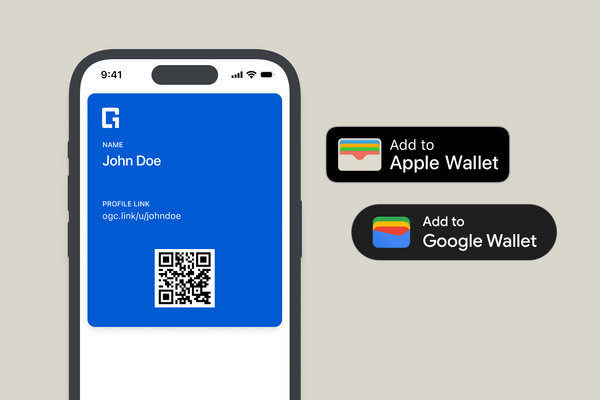
Introducing Add to Mobile Wallet: Your Digital Business Card Now Lives in Apple & Google Wallet
One Good Card now supports Apple Wallet and Google Wallet. Customise your wallet card, share via QR code, and keep...

Sending a Digital Business Card on WhatsApp — The Smarter Way to Share Your Details
Learn why One Good Card is the top choice for sharing digital business cards on WhatsApp, with enhanced features and...
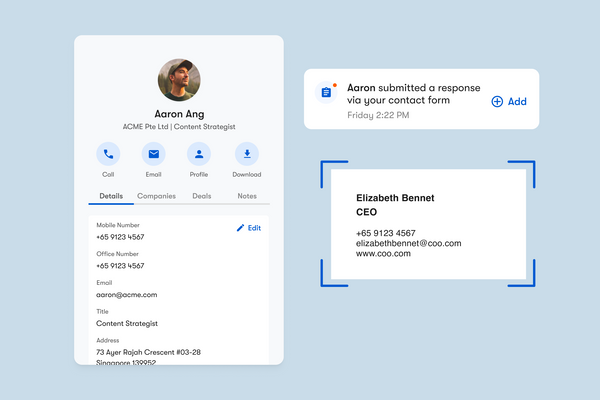
Event Lead Management: How to Capture, Qualify & Follow Up
Four stages between a booth conversation and a qualified CRM record: capture without breaking the conversation, same-day qualify, email verification,...
The all-in-one digital business card
for professionals
- ✓ Fully Customisable
- ✓ Lifetime Updates
- ✓ AES-256 Encryption
- ✓ Certified CSA-Compliant
- ✓ iOS and Android