
Scan Paper Name Cards into Contacts with OCR Scanner
One Good Card's OCR Scanner reads paper business cards and saves contacts automatically. Available on iOS and Android. No more manual data entry.

If you've ever attended a business event in Singapore, you probably know what I'm talking about. You come home with a stack of paper name cards, tell yourself you'll log them properly later, and then later never quite comes.
At One Good Card, we run a campaign at events where we do a one-to-one exchange: someone hands us their paper name card, and we give them a sample One Good Card to try. It's a great way to get people to experience digital name cards firsthand. The catch? We come back from every event with a stack of paper cards that our sales and marketing team then has to manually key into our Contact Manager (name, company, email, phone number), one by one. So they can follow up on each person's experience with the card.
It's exactly as tedious as it sounds. And it's what led us to build the OCR Scanner.
What is an OCR Scanner and What It Does
OCR (Optical Character Recognition) scanners convert images, PDFs, and printed/handwritten text into editable, machine-readable text.
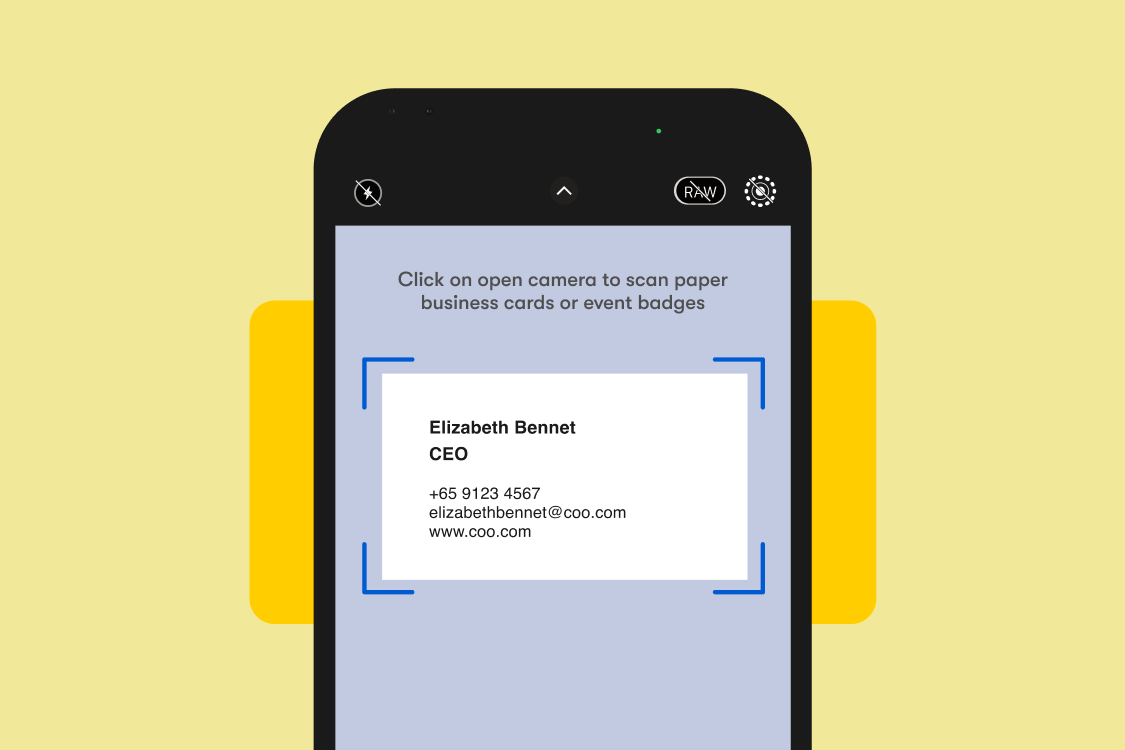
In simple terms: you take a photo of a paper name card using your phone camera, and One Good Card OCR Scanner reads the card and extracts the contact details automatically.
Name, job title, company, phone number, email address are pulled from the card in seconds. You review the details, make any edits if needed, and save the contact directly into your One Good Card Contact Manager. No manual typing required.
It works on both iOS and Android (mobile only).

How to Access It
There are two ways to get to the OCR Scanner:
Option 1: Head to your One Good Card dashboard and tap OCR in the main navigation bar, beside Cards
Option 2: Tap the bottom + on the navigation bar to create a new contact, then select Scan Business Card.
From there, point your camera at the paper name card to take a picture, let the scanner do its thing, review the extracted details, and save.
The OCR Scanner runs on a credits system:
- Basic users: 10 scans per month
- Pro users: 50 scans per month
- Need more? One-time top-ups are available
For most people, 10 scans a month is plenty. If you're in sales or attend a lot of events, the Pro allowance or a top-up will make more sense, especially around conference season when the cards start piling up.
Who This Is Most Useful For
Sales teams: If your team is collecting paper cards at client meetings, trade shows, or networking events, the OCR Scanner removes the manual logging step entirely. Your team follows up faster, and no contact slips through because keying it in felt like too much effort at the end of a long day.
Event regulars: Singapore has no shortage of business events throughout the year. If you come home from these with a stack of cards each time, this feature was built with you in mind.
Anyone making the switch from paper to digital: Not everyone you meet will have a digital name card yet. The OCR Scanner means you can still capture their details quickly and keep everything in one place, whether the contact shared a digital card or a paper one.
According to a 2025 survey by Parseur, professionals spend an average of more than nine hours a week transferring data from documents into digital systems. That's time that compounds quickly for teams managing large volumes of contacts post-event. Scanning immediately, rather than batching it all at the end of the week, spreads that effort across the moments when it's least disruptive and most accurate.
A Networking Habit Worth Building
Here's something I started doing after we built this feature: whenever I receive a paper name card, I scan it immediately after the conversation (not in front of them, of course!), then recycle the card on the spot.

It sounds small, but it's made a real difference. The contact is logged while the meeting is still fresh, I'm not hoarding cards I'll never look at again, and if I ever need to reference the original card, the OCR Scanner saves an image of it in the contact's notes section — so there's always something to fall back on.
Timing matters more than people realise. After a busy event, it's surprisingly hard to remember the context behind each card — who this person was, what you talked about, why you wanted to follow up. Context fades fast. Scanning immediately after the conversation means you can also drop a quick note into the contact while the details are still in your head. Something as simple as "met at X event, interested in Y, send product deck" makes your follow-up significantly more personal and relevant than a generic check-in 3 days later.
It also breaks the habit of treating business cards as something to deal with later. Later has a way of turning into never. Scanning on the spot and recycling the card immediately closes the loop. The contact is captured, the card is gone, and there's nothing left to pile up on your desk.
Manually keying in contact details is one of those tasks that feels minor until you're sitting in front of a stack of 50 paper name cards from last week's event. The OCR Scanner is not a flashy feature. It is a practical one that solves a real problem, which is exactly why we built it.
If you have a backlog of paper cards sitting somewhere right now, this is a good time to start clearing it.

Related articles
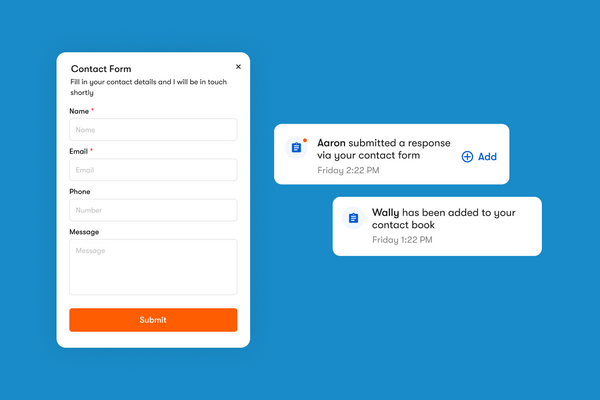
How One Good Card's Contact Form and Leads Page Work
The contact form is a widget you can add directly onto your One Good Card digital name card
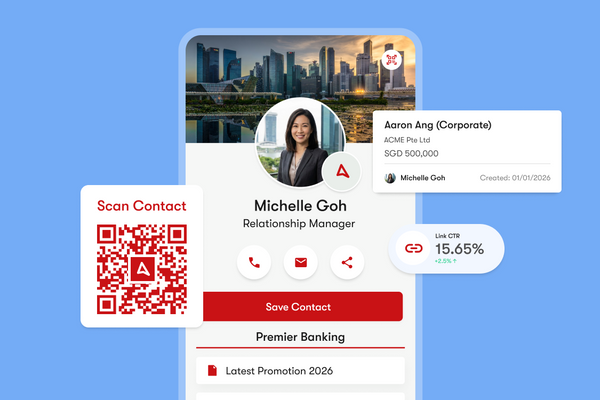
How to Maximise Your One Good Card: 10 Features You Might Not Know
Discover 10 powerful One Good Card features you might not know, from real-time edits and lead capture to CRM sales...
Your Free Virtual Background Is Your New Business Card; Here's Why It Matters
Your virtual background shapes first impressions before you speak. Learn how to brand it smartly and grow your network on...
The all-in-one digital business card
for professionals
- ✓ Fully Customisable
- ✓ Lifetime Updates
- ✓ AES-256 Encryption
- ✓ Certified CSA-Compliant
- ✓ iOS and Android